Image to Image AI Generator
Upload a photo, describe what should change, and get it back in 15-30 seconds — new background, new style, new season — with the composition of your original intact.
- Flux 2 Pro, Seedream 5.0, Grok Imagine
- From 38 credits per edit
- No subscription, credits never expire
- Commercial use, no watermark
Image to Image Features
Upload Any Image
Start with your photo, artwork, or sketch as a base
AI Transformation
Describe how you want to transform the image
Style Transfer
Apply any art style to your existing images
Variations
Generate multiple variations of your image
What You Can Do
About Image to Image AI
Transform any image into something extraordinary with AI-powered style transfer, enhancement, and creative variation tools.
AI Photo Editor with a Prompt
Upload a photo and describe the change in plain words: a new background, different lighting, another season, a different outfit. No masks, layers or selection tools.
Photo to Art Conversion
Turn photos into watercolor, oil paint, sketch, anime, 3D render or cinematic stills while the pose and composition stay where they were.
Three Current Models
Flux 2 Pro, Seedream 5.0 and Grok Imagine each take your photo as a reference. Pick per edit: fast and cheap for drafts, photorealistic for the final.
Keeps Your Framing
Every model matches the aspect ratio of your upload, so a vertical story stays vertical and a product shot keeps its crop.
Image to Image Before & After Examples
Drag the slider to compare before and after
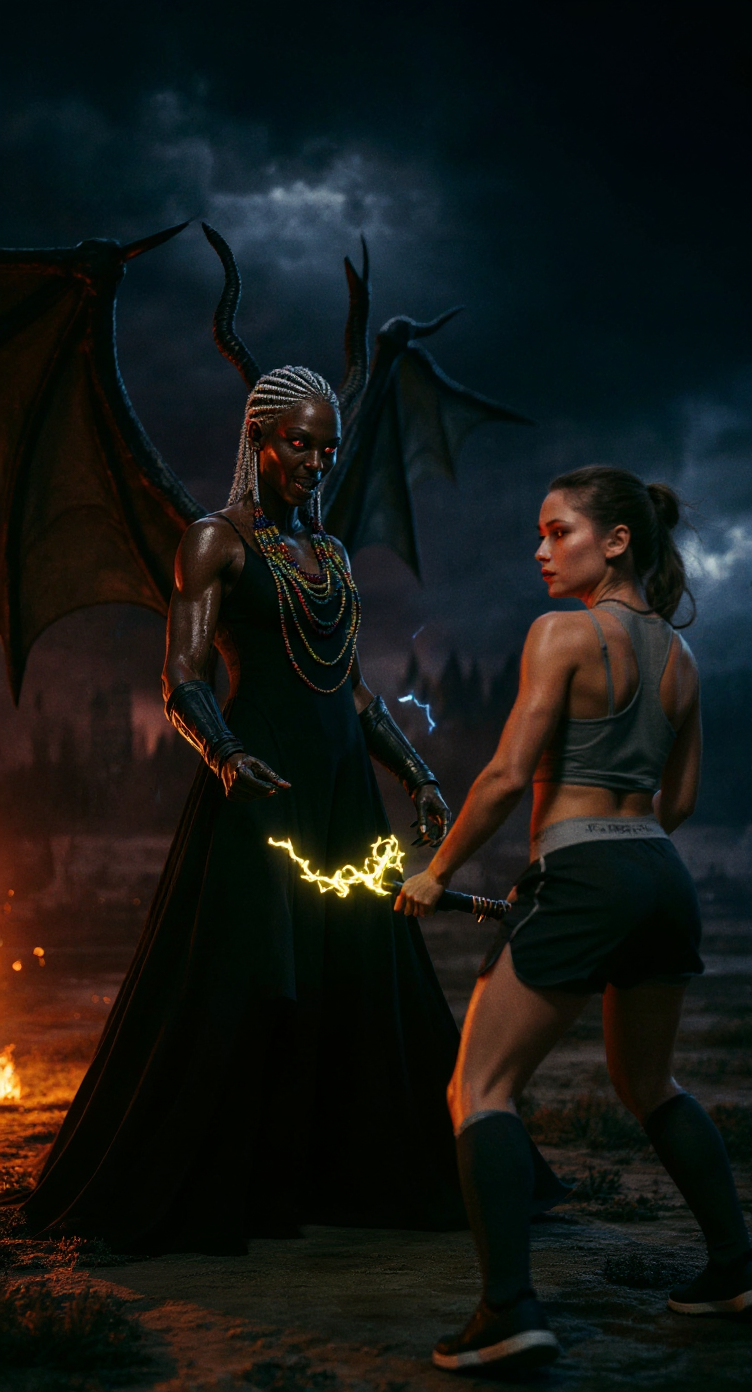
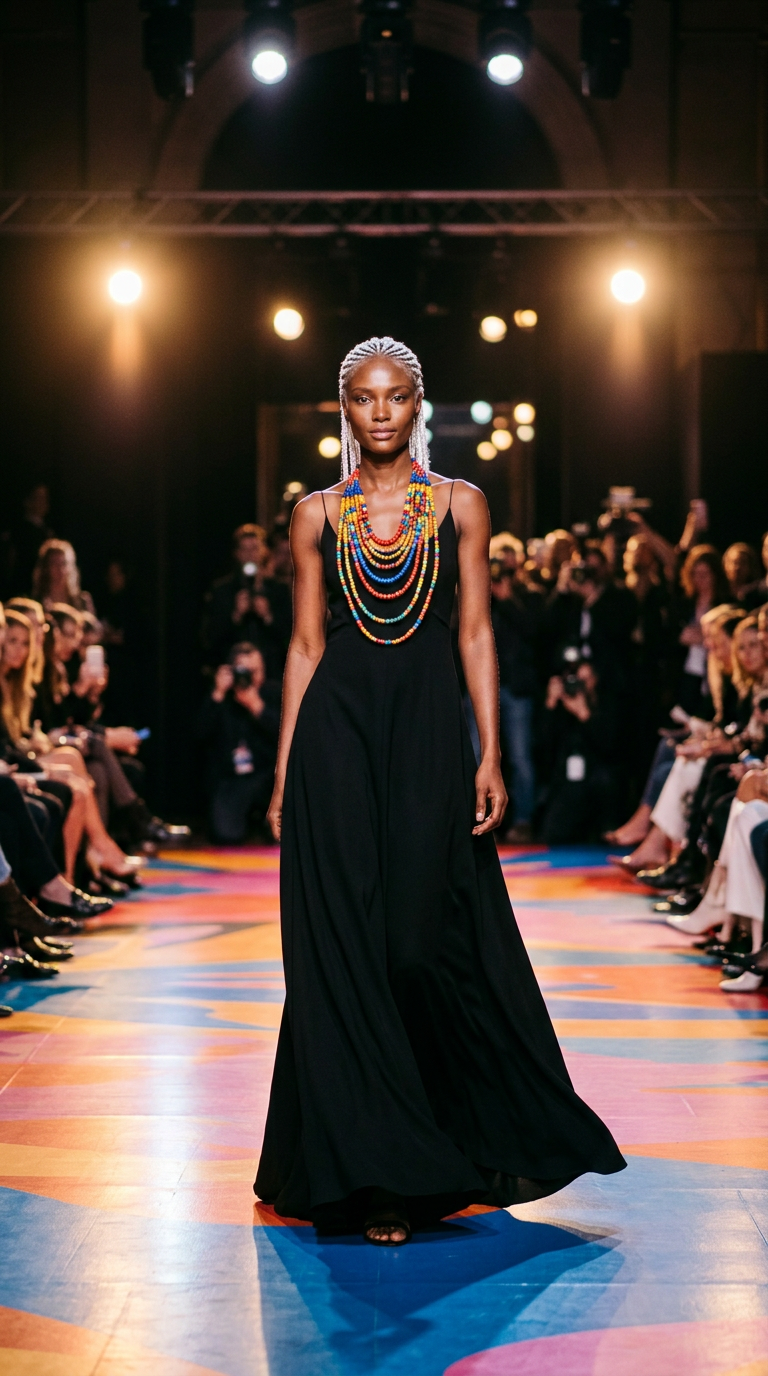
Prompt: "Stormy evening battlefield with dark clouds swirling in the sky. A fierce female demon with curved black horns, glowing red eyes, and crackling shadow energy around her body stands ready to attack. Opposite her is a determined human girl wearing a sporty battle outfit with combat shorts and a sleeveless top, gripping a glowing energy blade. The demon launches waves of dark fire and sharp shadow claws, tearing through the ground. The human girl dodges swiftly, using agility and precise counterat, photorealistic style, detailed texture, high resolution photography, professional lighting
Image to Image Models Compared
All three accept your photo as a reference. They differ in speed, fidelity and price per edit.
| Model | Best for | Output | Credits / edit |
|---|---|---|---|
| Grok ImaginexAI | Quick edits and iteration: swap a background, change the lighting, try five ideas before the final render. The fastest and cheapest of the three. | Keeps the source shape | 38 |
| Seedream 5.0ByteDance | Restyling while keeping the subject recognisable: photo to illustration, season and weather changes, interior restyles. Handles long prompts with many details. | 2K, keeps the source shape | 38 |
| Flux 2 ProBlack Forest Labs | Final, photorealistic results and anything with text in the frame: product packaging, labels, posters. The most faithful to fine detail. | ~2 MP, keeps the source shape | 69 |
Image to Image Prompt Examples
Copy one, upload your own photo and adjust the details.
Replace the background
Place the product on a white marble countertop, soft window light from the left, shallow depth of field, keep the product unchanged
Photo to illustration
Turn this photo into a hand-drawn watercolor illustration, loose brush strokes, muted palette, keep the pose and composition
Sketch to render
Render this pencil sketch as a photorealistic 3D product visualisation, matte black plastic, studio lighting, grey seamless background
Change the season
Same street in winter: fresh snow on the roofs and pavement, overcast sky, warm light in the windows, keep the buildings identical
Restyle a room
Redesign this living room in Japandi style: light oak, linen sofa, paper lamp, neutral palette, keep the windows and layout
Portrait to headshot
Professional LinkedIn headshot of the same person, navy blazer, soft studio light, neutral grey background, natural skin texture
Tips for Better Image to Image Results
- Say what must stay the same. "Keep the product unchanged" or "keep the pose" stops the model from redrawing the part you care about.
- Describe the change, not the whole picture. The model already sees your photo; the prompt only needs the difference.
- Start with Grok Imagine to find the direction, then run the winning prompt on Flux 2 Pro for the final image.
- Use a sharp, well-lit source. Blur and heavy compression are carried into the result.
- For products with text on them, use Flux 2 Pro — it is the model that keeps lettering legible.
How Image to Image Works
Upload Image
JPG, PNG or WebP up to 5 MB, or pick one from your library
Describe the Change
Say what to change and what must stay the same, then pick a model
Download
Get the result in 15-30 seconds at full resolution, ready for commercial use
Image to Image FAQ
What is image to image AI?
Image to image AI takes a picture you already have and changes it according to a text prompt. Unlike text to image, which starts from nothing, it uses your upload as the starting point, so the composition, pose and proportions carry over into the result.
Which image to image model should I use?
Grok Imagine (38 credits) for fast, cheap iterations; Seedream 5.0 (38 credits) for restyling at 2K while keeping the subject recognisable; Flux 2 Pro (69 credits) for the most photorealistic final image and for anything with text in it.
How much does image to image cost?
An edit costs 38-69 credits depending on the model. Credit packages start at $4.99 for 300 credits, there is no subscription and credits never expire. Creating an account costs nothing, but every generation uses credits — there is no free generation tier.
What images can I upload?
Photos, product shots, artwork, sketches and screenshots in JPG, PNG or WebP up to 5 MB. You can also reuse any image from your ArtLab library. Clear, well-lit sources give the best results.
Will the result keep the shape of my photo?
Yes. All three models match the aspect ratio of the image you upload, so a vertical photo stays vertical and a product shot keeps its framing.
Can I use the edited images commercially?
Yes. Images you create are yours for product listings, ads, social media, print and client work, with no watermark and no attribution required.
What's the difference between text to image and image to image?
Text to image creates a new picture from a description. Image to image changes a picture you already have. Use text to image when you are starting from an idea, and image to image when you have a photo, product shot or sketch to build on.
Guides
Use AI to see your room renovated in any style — modern, minimalist, Scandinavian, or luxe. No designers, no 3D software, just describe what you want.
Restore damaged family photos, colorize black-and-white memories, and enhance faded images using AI. Give your grandparents' photos a second life.
Learn how to create professional personal branding visuals with AI — from LinkedIn banners to speaker headshots, thought leadership graphics, and consistent social presence.